Weather Report Automation
Building an AI Agent that tells weather conditions.

For me, DevOps isn't just a job — it's a craft. I derive genuine excitement from turning tedious manual tasks into automated workflows that run like clockwork. As a junior DevOps engineer, I've already made tangible impacts, like implementing a Jenkins CI/CD pipeline that cut deployment times by 30% and significantly reduced release-day errors.
𝗞𝗲𝘆 𝗦𝗸𝗶𝗹𝗹𝘀 & 𝗔𝗰𝗵𝗶𝗲𝘃𝗲𝗺𝗲𝗻𝘁𝘀
𝗔𝘂𝘁𝗼𝗺𝗮𝘁𝗶𝗼𝗻 & 𝗖𝗜/𝗖𝗗: Built and maintained continuous integration pipelines (Jenkins, GitHub Actions) that accelerated deployment cycles by eliminating manual steps, saving ~5 hours per week.
𝗖𝗹𝗼𝘂𝗱 𝗜𝗻𝗳𝗿𝗮𝘀𝘁𝗿𝘂𝗰𝘁𝘂𝗿𝗲 (𝗔𝗪𝗦): Deployed and managed scalable applications on AWS using infrastructure as code (Terraform), ensuring consistent environments and smooth rollouts.
𝗖𝗼𝗻𝘁𝗮𝗶𝗻𝗲𝗿𝗶𝘇𝗮𝘁𝗶𝗼𝗻 & 𝗢𝗿𝗰𝗵𝗲𝘀𝘁𝗿𝗮𝘁𝗶𝗼𝗻: Implemented containerization with Docker and orchestrated services using Kubernetes, enabling microservice architectures and seamless deployments.
I approach each challenge with a humble mindset — there's always a new tool or technique to master — but also with the confidence that I can devise effective solutions. I've thrived in globally distributed teams and am adept at remote collaboration, using clear communication to keep projects on track across time zones. Ultimately, I'm on a mission to bridge the gap between development and operations to help teams deliver reliable software faster. I'm excited to continue growing as a DevOps professional. My goal is to bring my energy, curiosity, and commitment to excellence to a forward-thinking remote team that values continuous improvement and innovation.
Aim: To build an AI agent that we can speak to and it tells us the weather condition of any place we want.
Tools
Vapi
Large Language Model (LLM) like OpenAI, Gemini AI etc.
n8n
- Visit https://n8n.io/workflows/ to sign in to n8n if you already have an account. Or Get Started to create one.
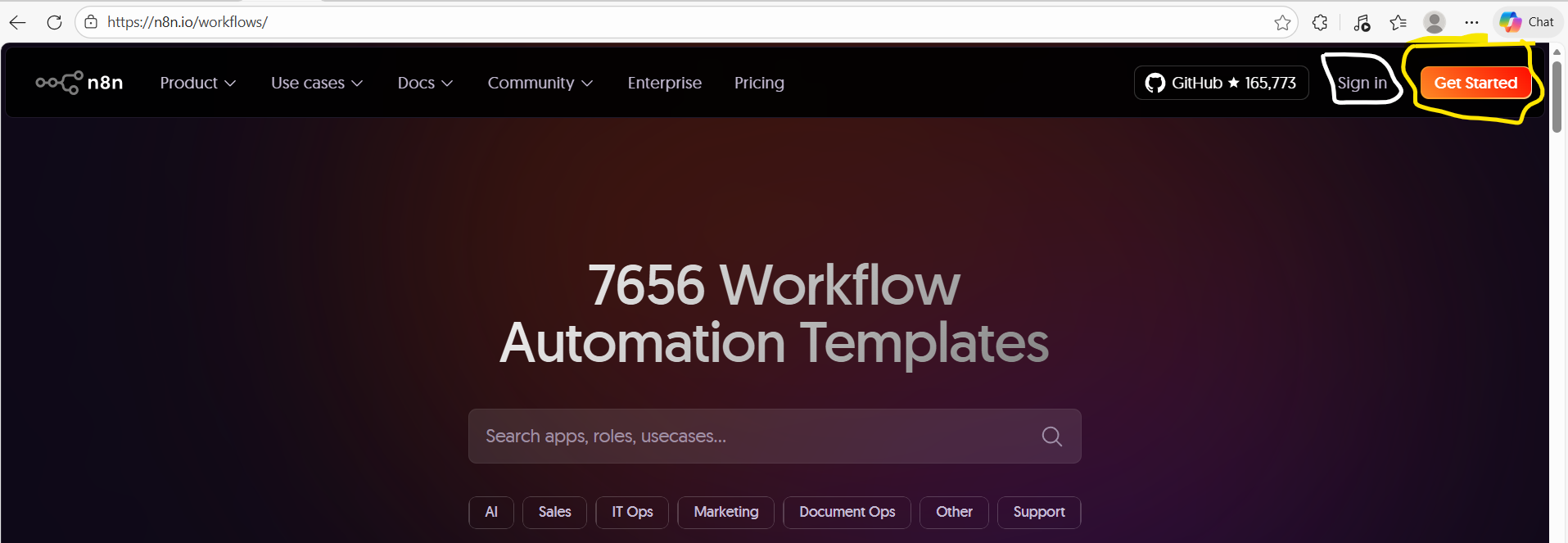
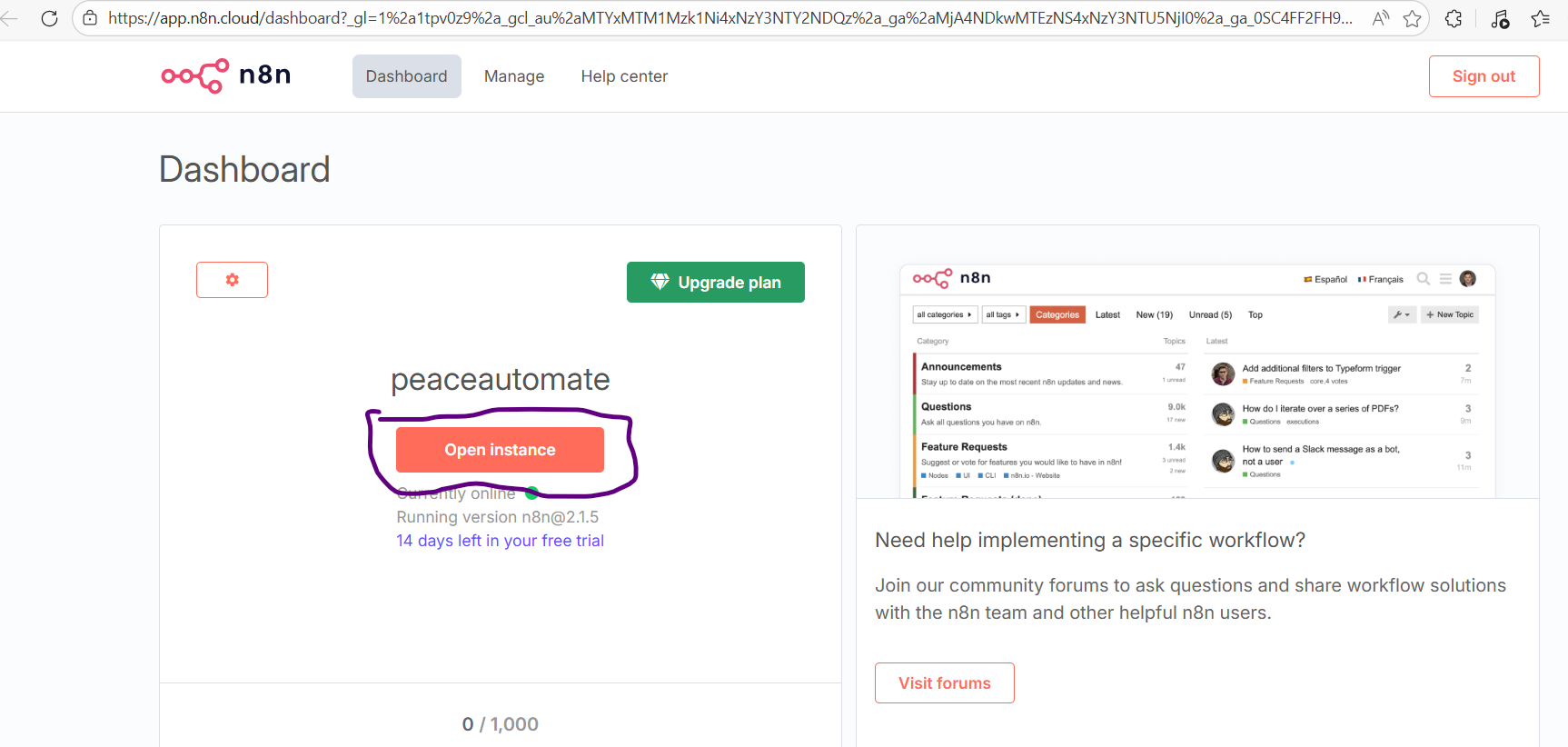
Since I had created account already, I will be signing in. Thenafter, I click on Open Instance.
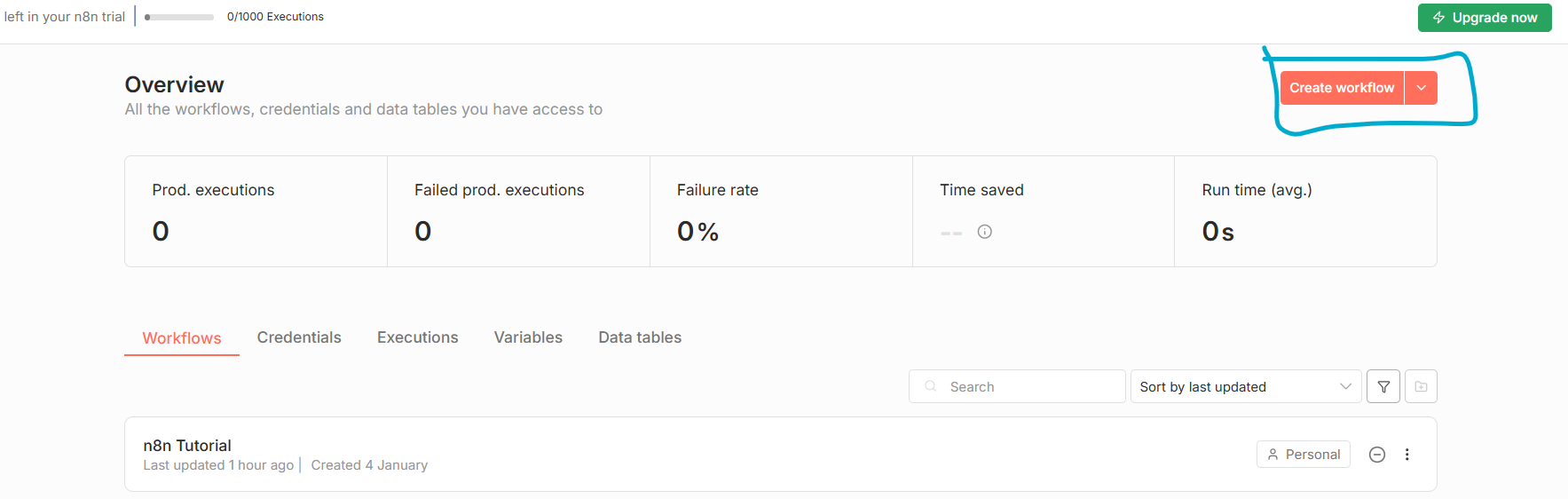
Click on Workflows
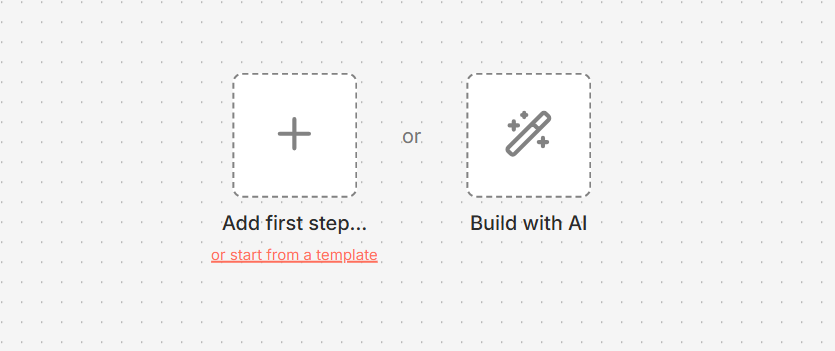
Click on the Large Plus (+) sign above where is written Add first step... or start from a template.
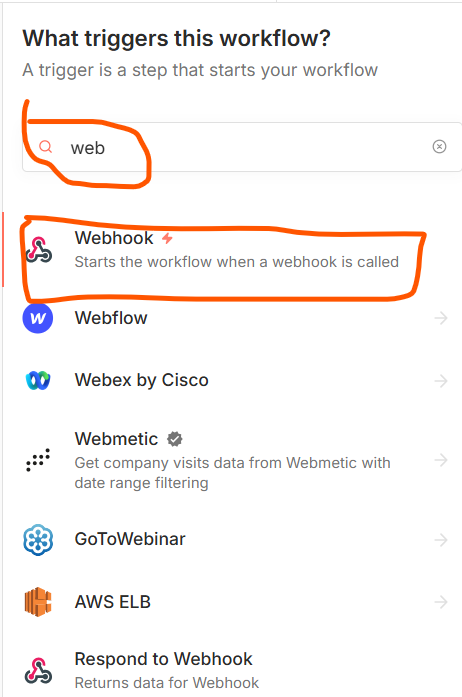
Search for Webhook and select in the dropdown
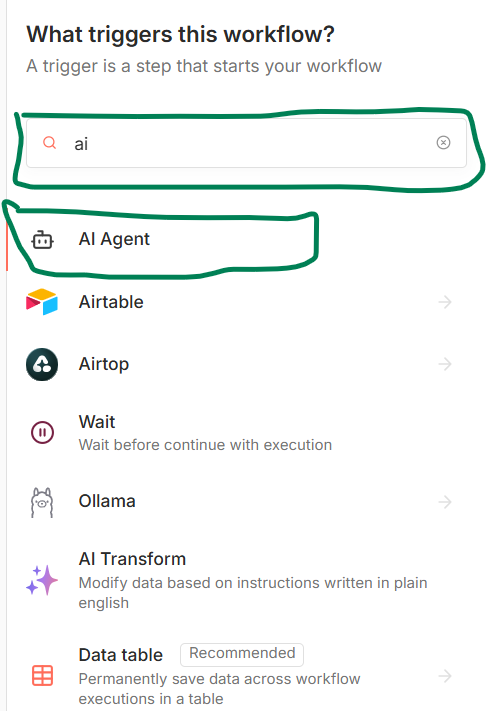
Search for AI agent and click it in the drop down.
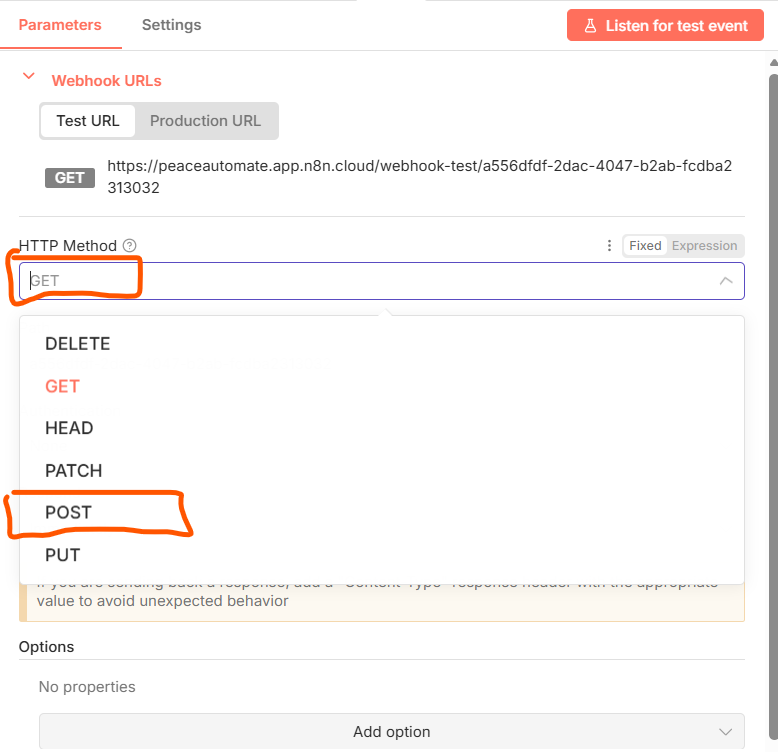
Click on the bar where GET is and select POST in the drop-down. Leave every other thing in default and click on (x) to close the page.
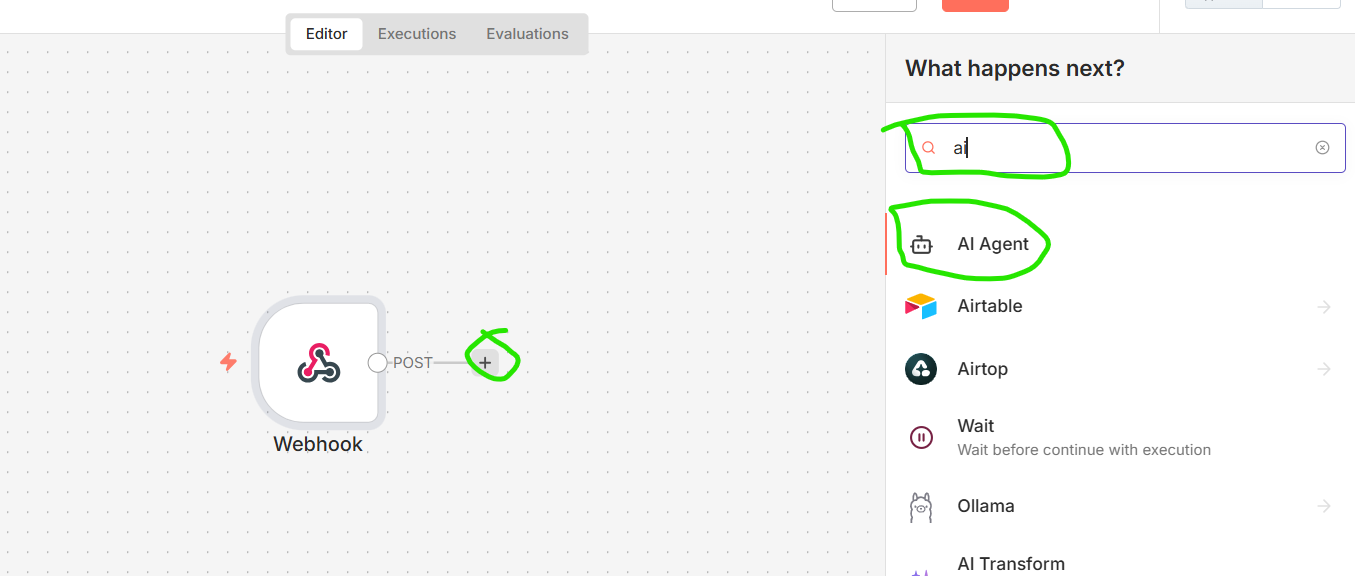
Click on the plus (+) to the right of Webhook and search AI agent in the popped-out dialog box and select it.
Close the page that opened.
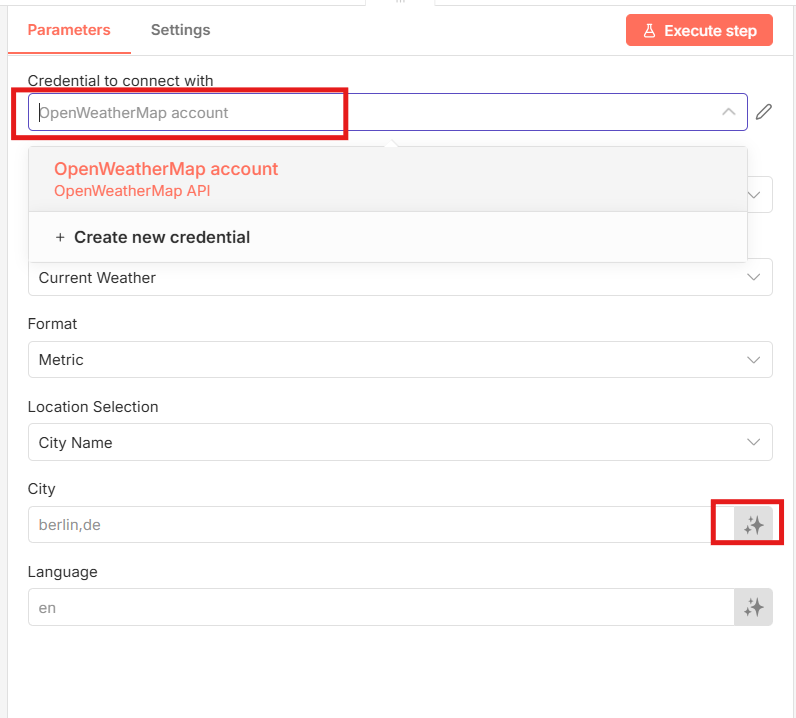
Let's now add a weather_tool Click on the plus (+) under tool. Search for Weather in the bar and Select the OpenWeatherMap tool
If you have not created credentials for OpenWeatherMap do it. In the City bar click on the stars to automatically get that decided by AI. Close the page after that.
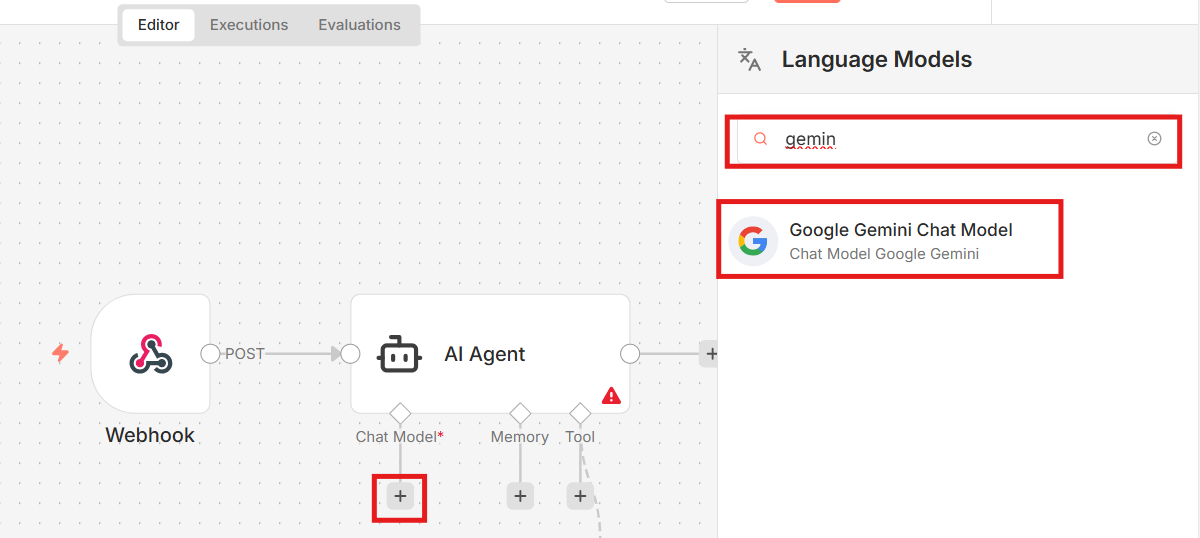
Lets now add chat model Click on the plus (+) below chat model. Under the language models dialog box search for Gemini or OpenAI etc. In this case I am searching for Gemini because I had exhausted my credit in OpenAI.
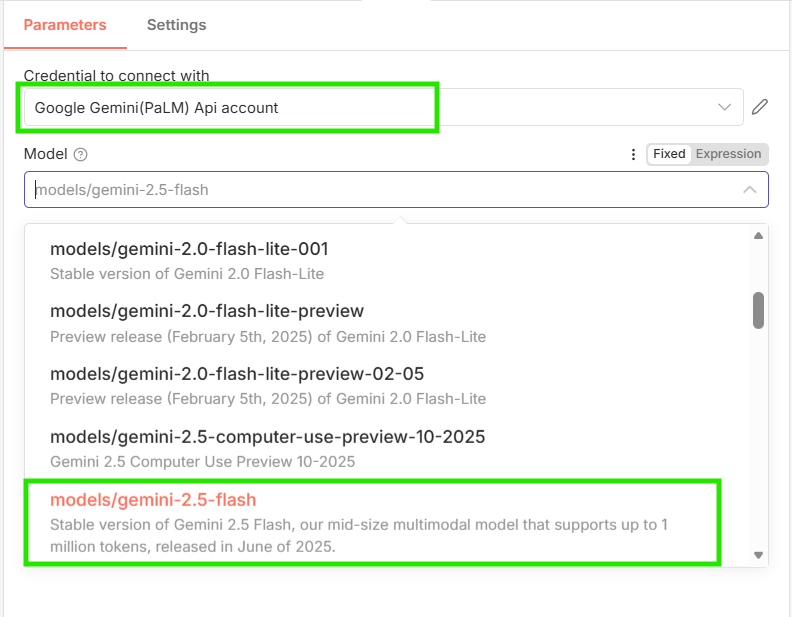
You need to create credential and generate an API if you have not done so. Select the flash option of Gemini.
Close the window.
Let's now setup VAPI Create an account or sign in. I am using my Github account to sign in in this case.
Click on Assistants and then click on Create Assistant
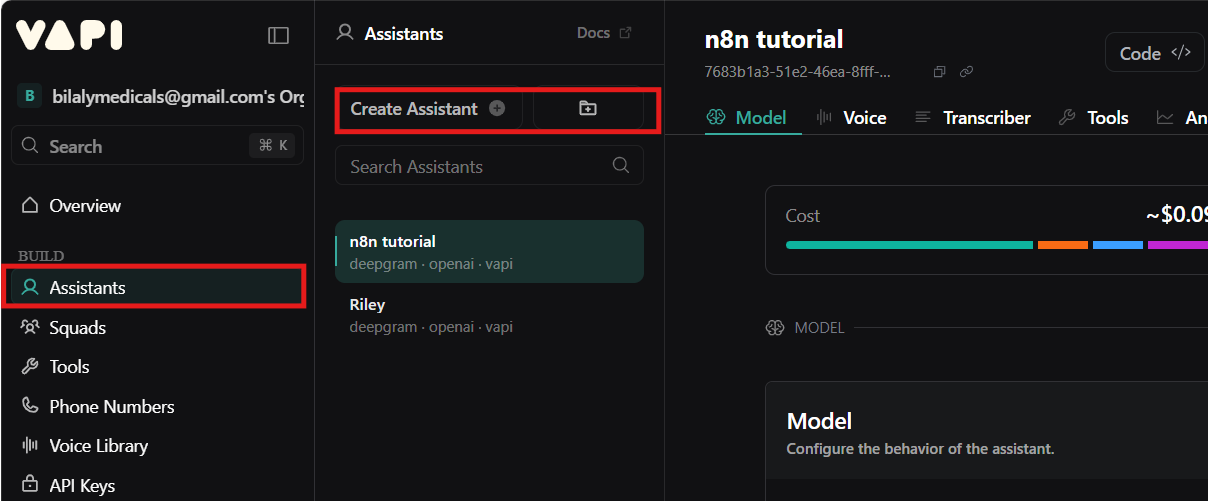
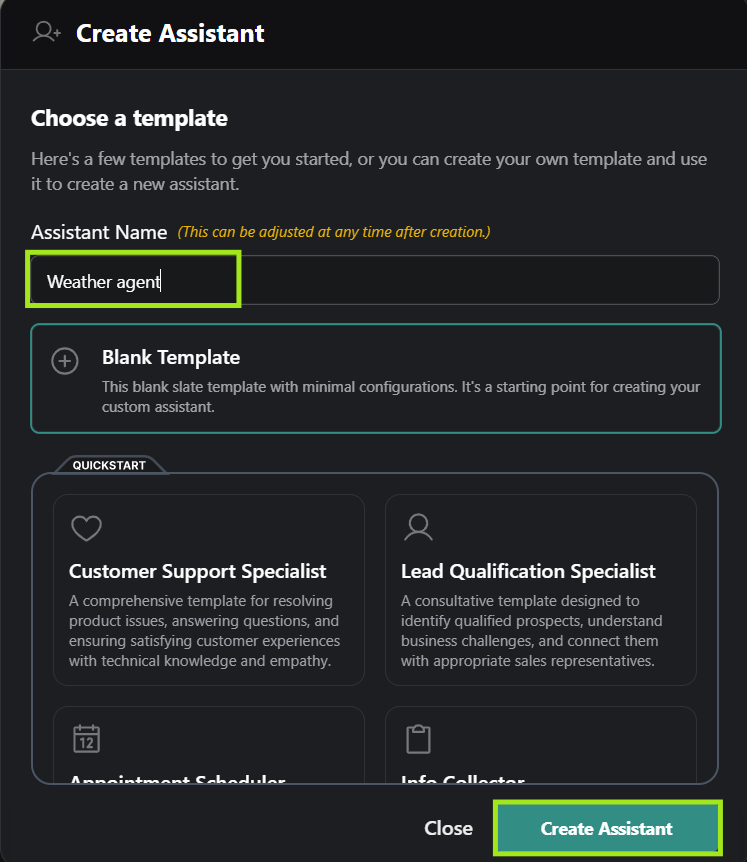
Give the your Assistant a name. Lets call it Weather Agent. Then click on Create Assistant.
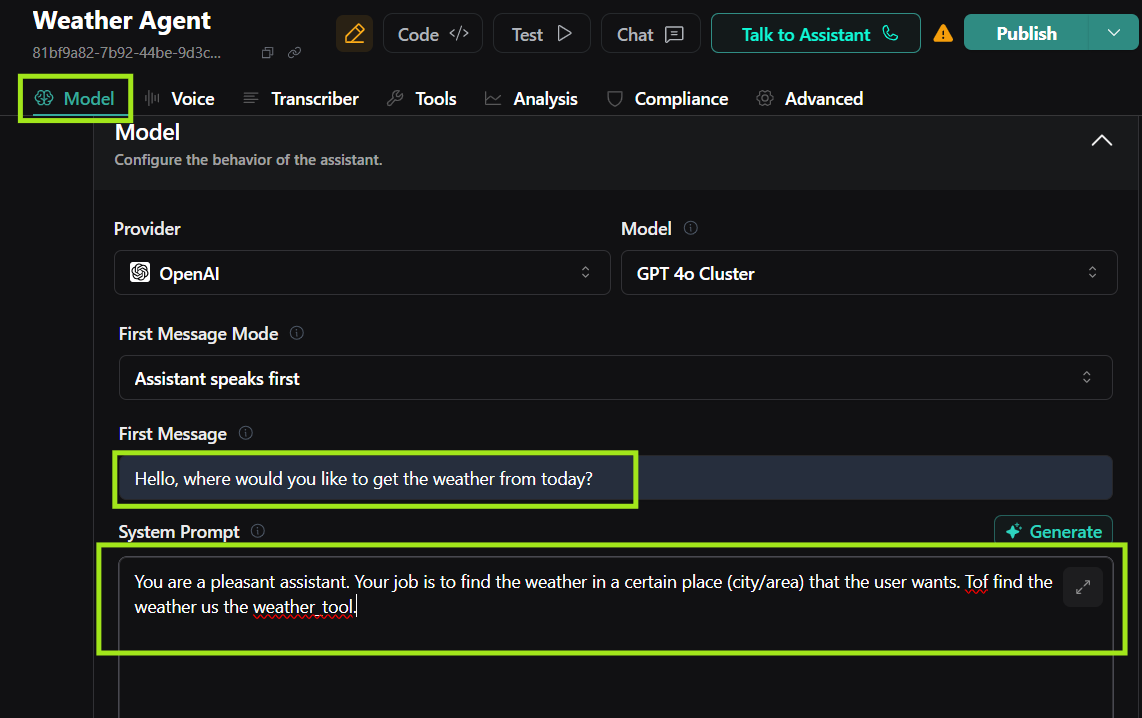
Under model; type in the First Message and the System Prompt.
Let's now create the Weather_tool.
Scroll down to Tools. Click on the Tools bar and click on Create New Tool.
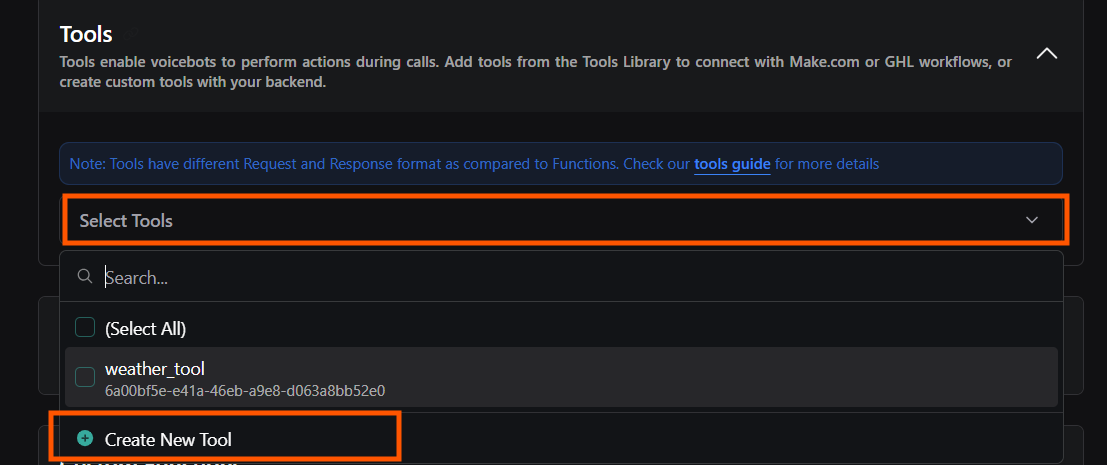
Click on Create Tool

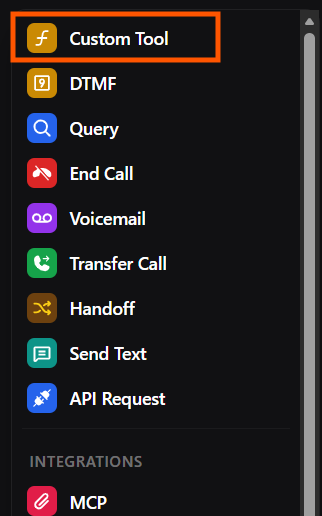
Click on Custom Tool
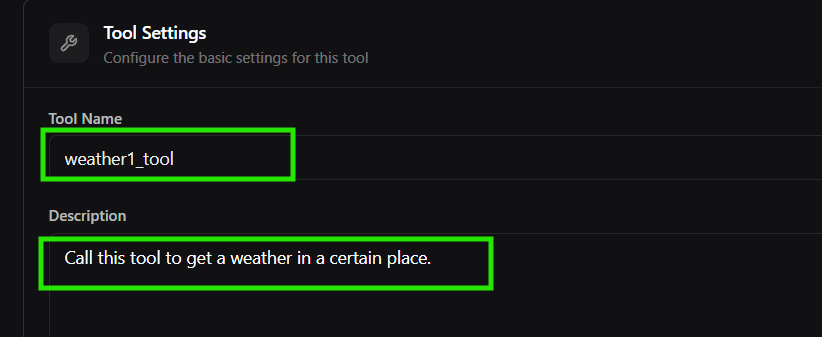
Rename the tool as Weather1_tool. And Give a description below.
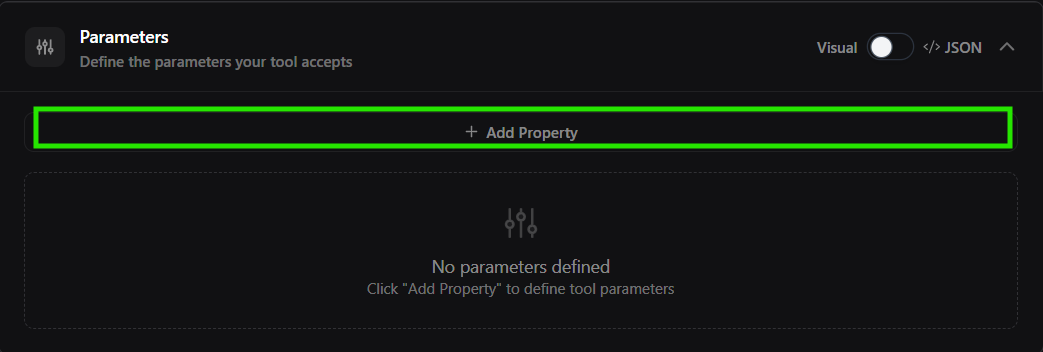
Scroll down to Parameters and click on + Add Property.
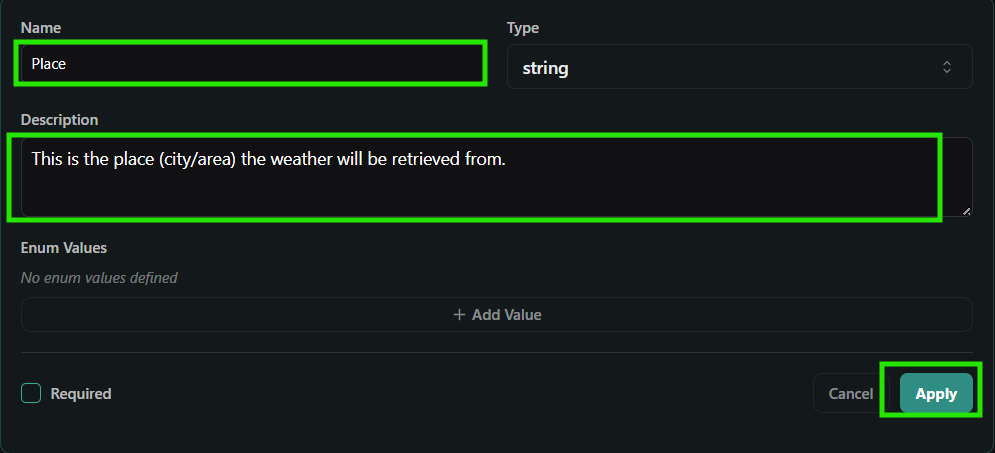
Give the Parameter name; Place and write a description and click on Apply. Don't click on Required.
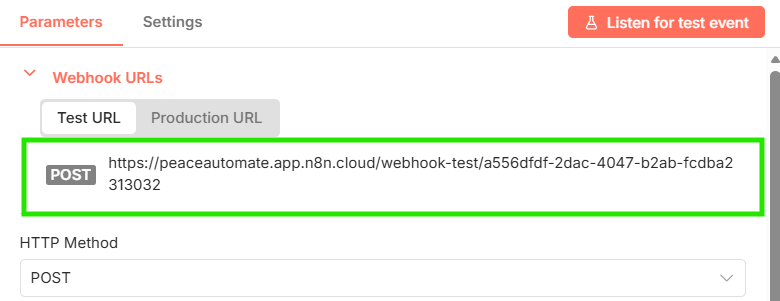
Scroll to Server Settings For the Server URL, we need to go back to n8n, double click on Webhook and copy the POST URL
Go back to Vapi and paste the URL in the Server URL bar. Then click on Save.
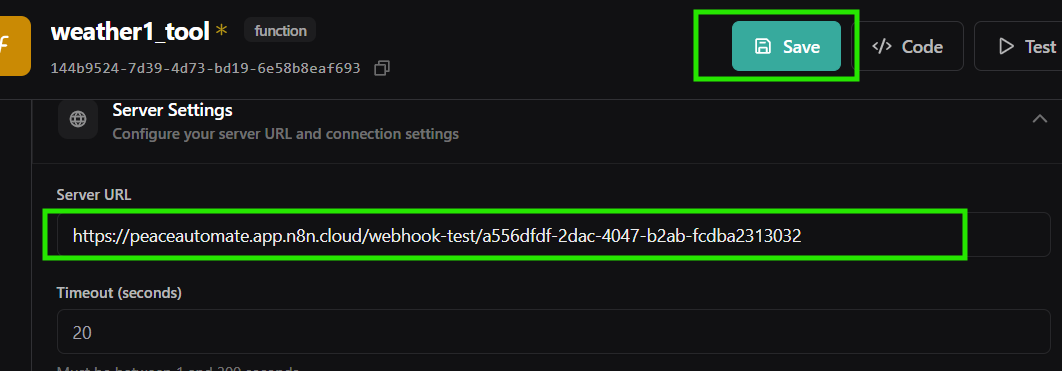
We just finished setting up our Weather_tool.
Click on Assistants and then click on Tools.
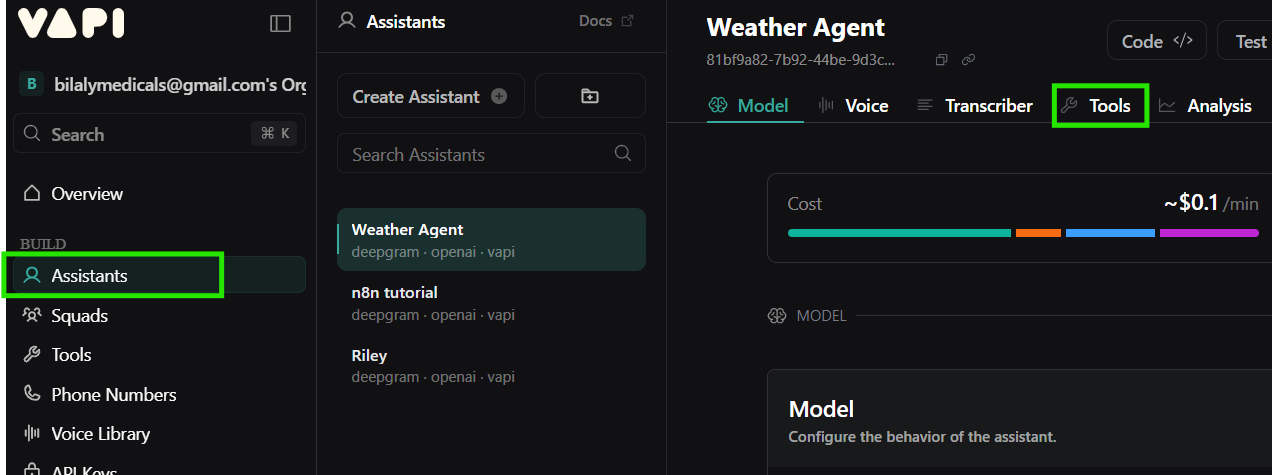
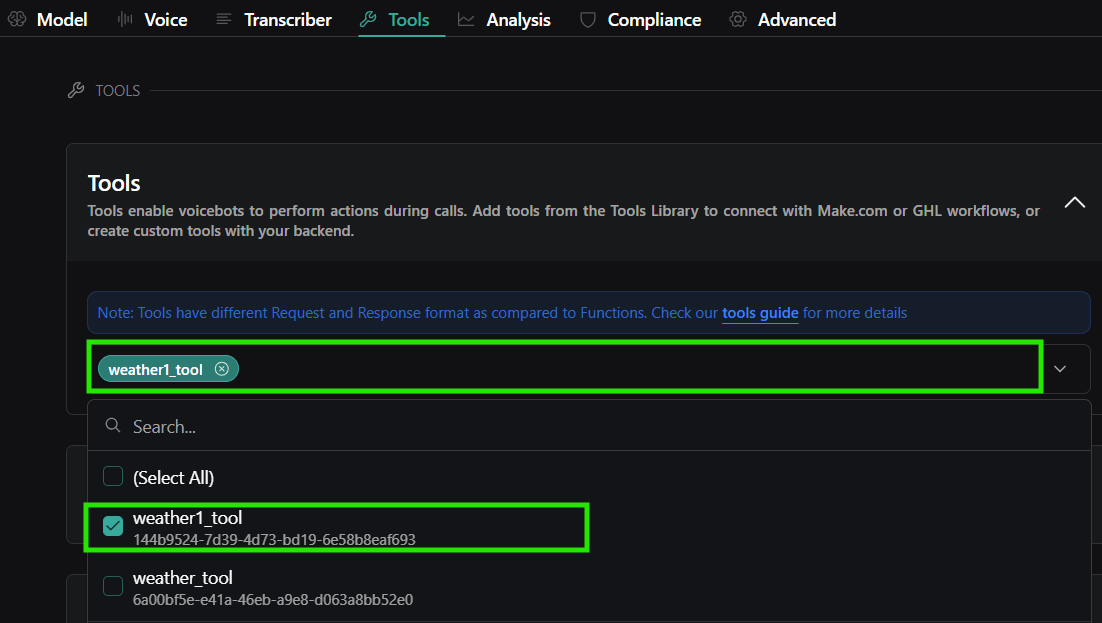
Click on Select Tool bar and click to Select the weather_tool we just created.
Click on Publish at the top right-hand corner of the page.
Click on Configure Structured Output. Select the first one; Call Summary and click on Next.
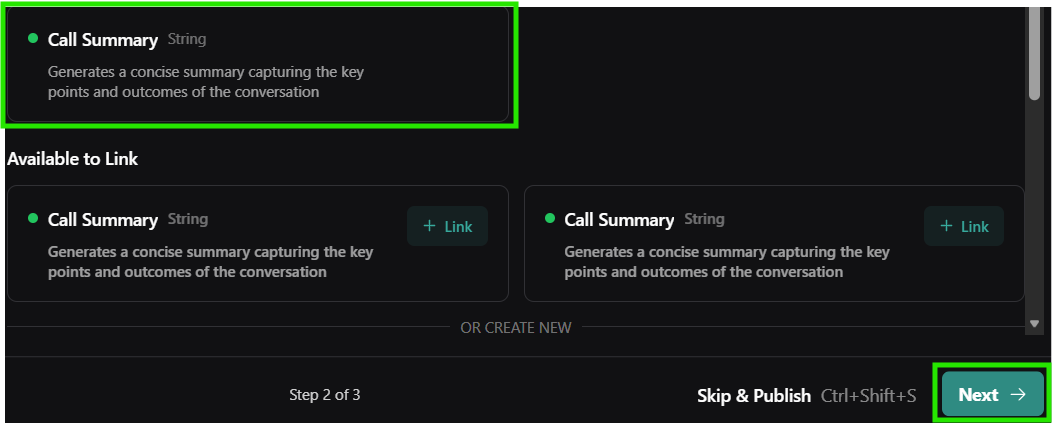
Click on Publish.
Back to n8n. Click on Listen for test event.
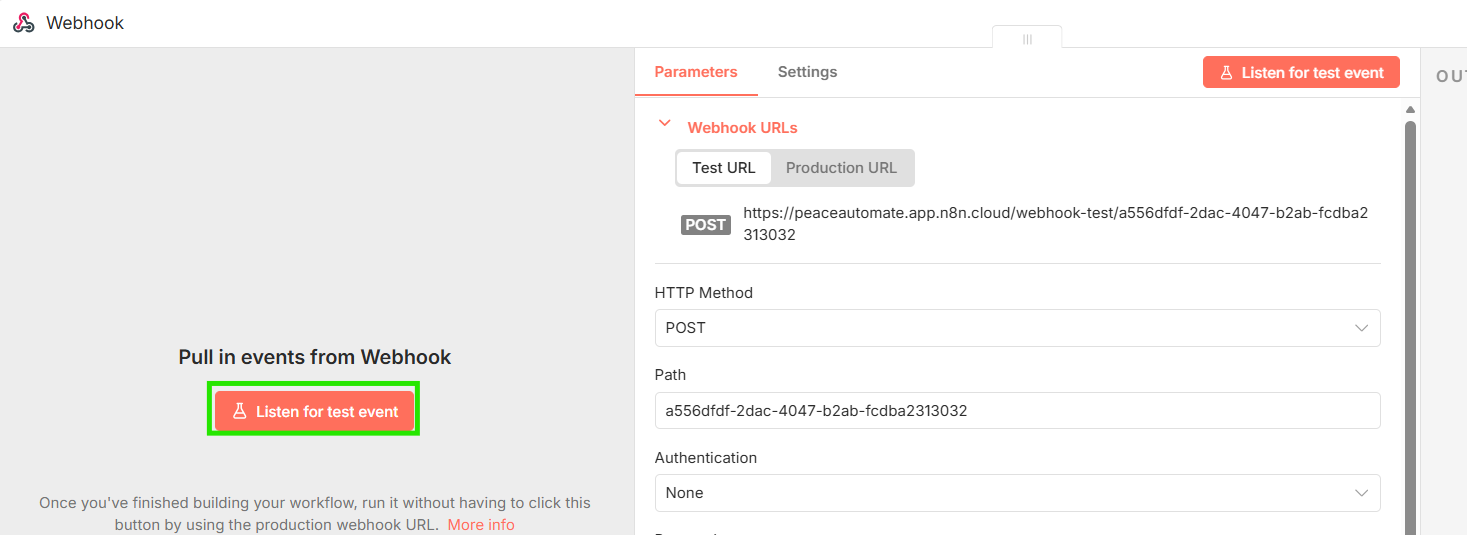
As it starts listening... Go back to Vapi and click on Talk to Assistant.
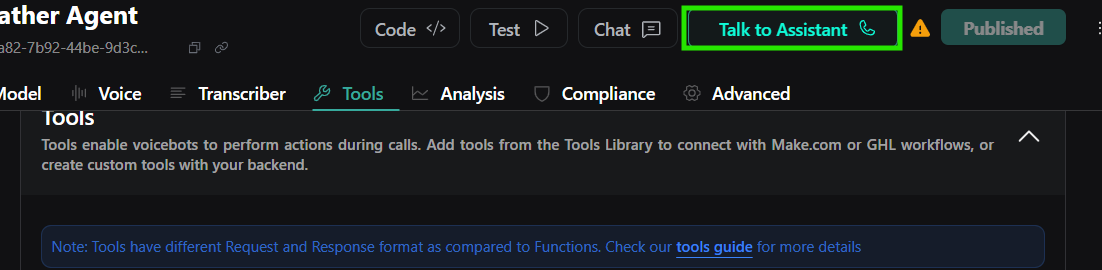
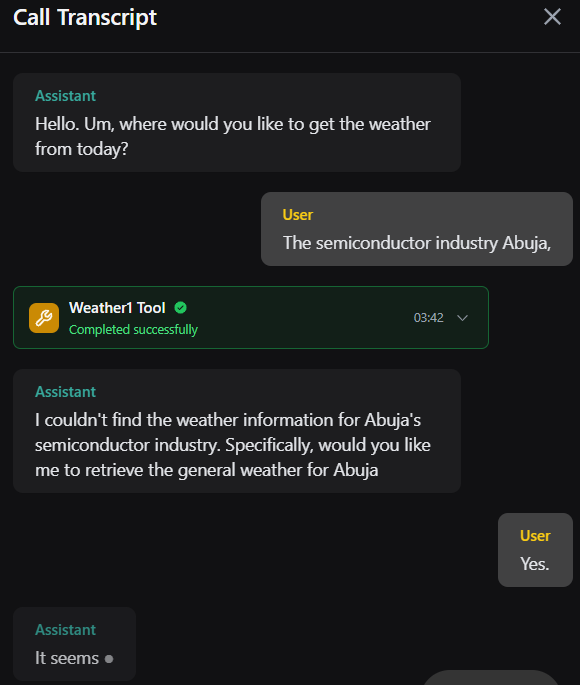
The Weather Assistant will call to ask you where you want to get its weather. On telling it. It will say he is not able to get it. That is true. We now need to configure the part it actually gives a good reply.
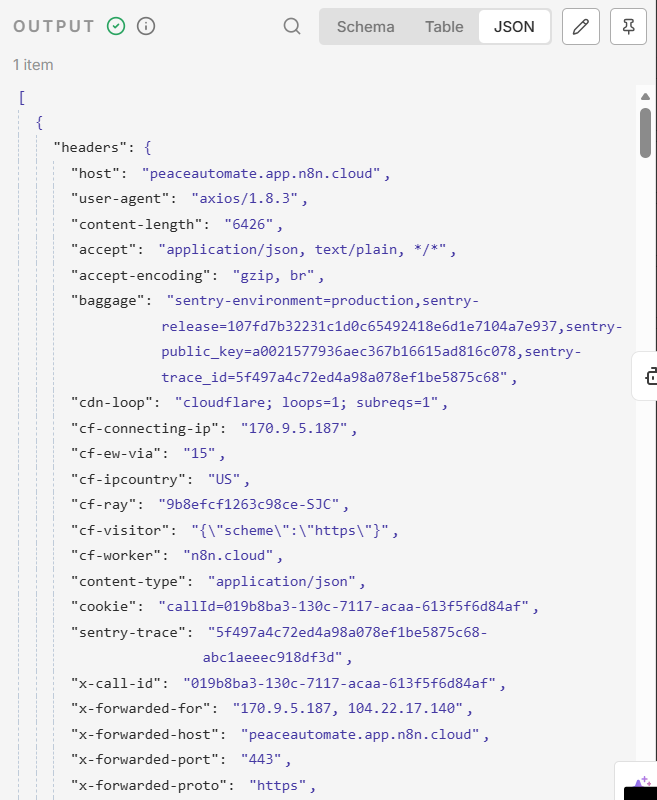
End the call. Back to n8n. You should see the output dialog box has been populated with data on the call you just made.
Double click on your AI Agent in n8n. And under Source for Prompt (User Message) select Define below.
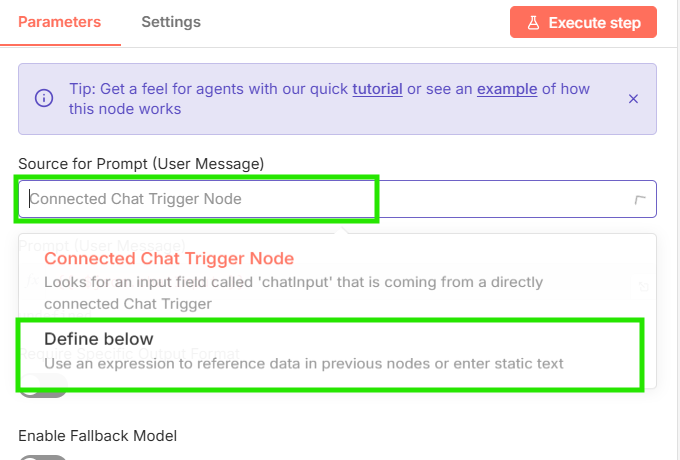
Type in the Prompt box and move in codes from the left panel to represent key indices. Make sure you select Expression

Lets now add a Response to Webhook
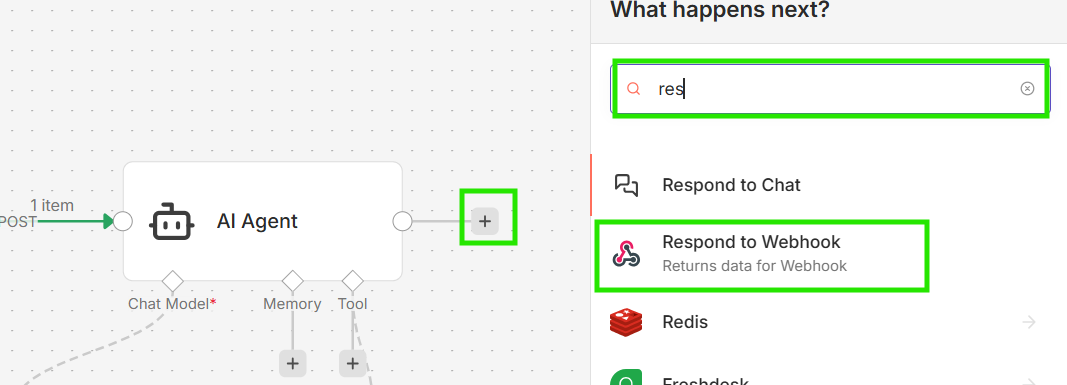
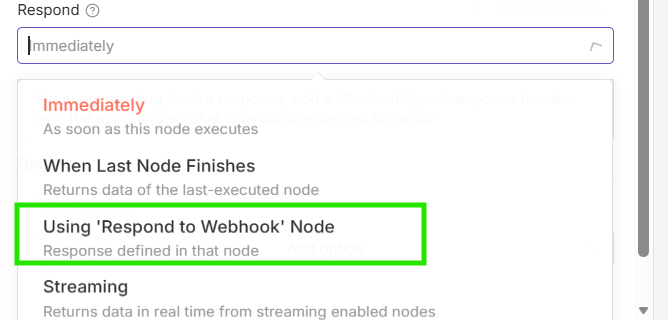
Double click on Webhook and click on Using 'Respond to Webhook Nodes'
Click on Execute workflows in n8n and go to Vapi to Talk to Assistant.
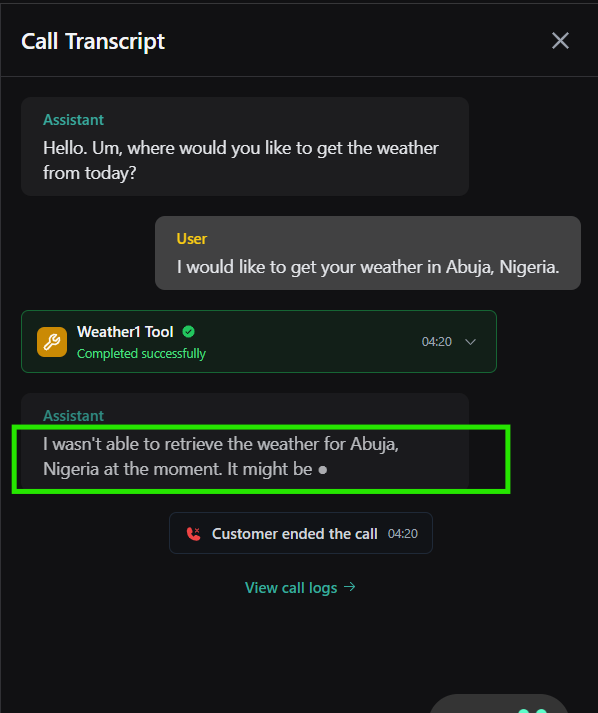
You will notice it still could not give us intend answer. That is natural. Let's tweak it a bit further.
Double click on Respond to Webhook. You should see the Output format. Now that format can't be sent to Vapi. Hence, why Vapi didnt response to us.
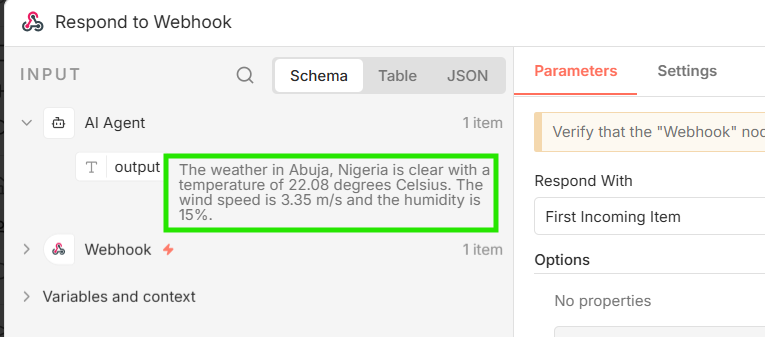
Message sent to Vapi has to be in a particular format. Now let's open Vapi Documentation.
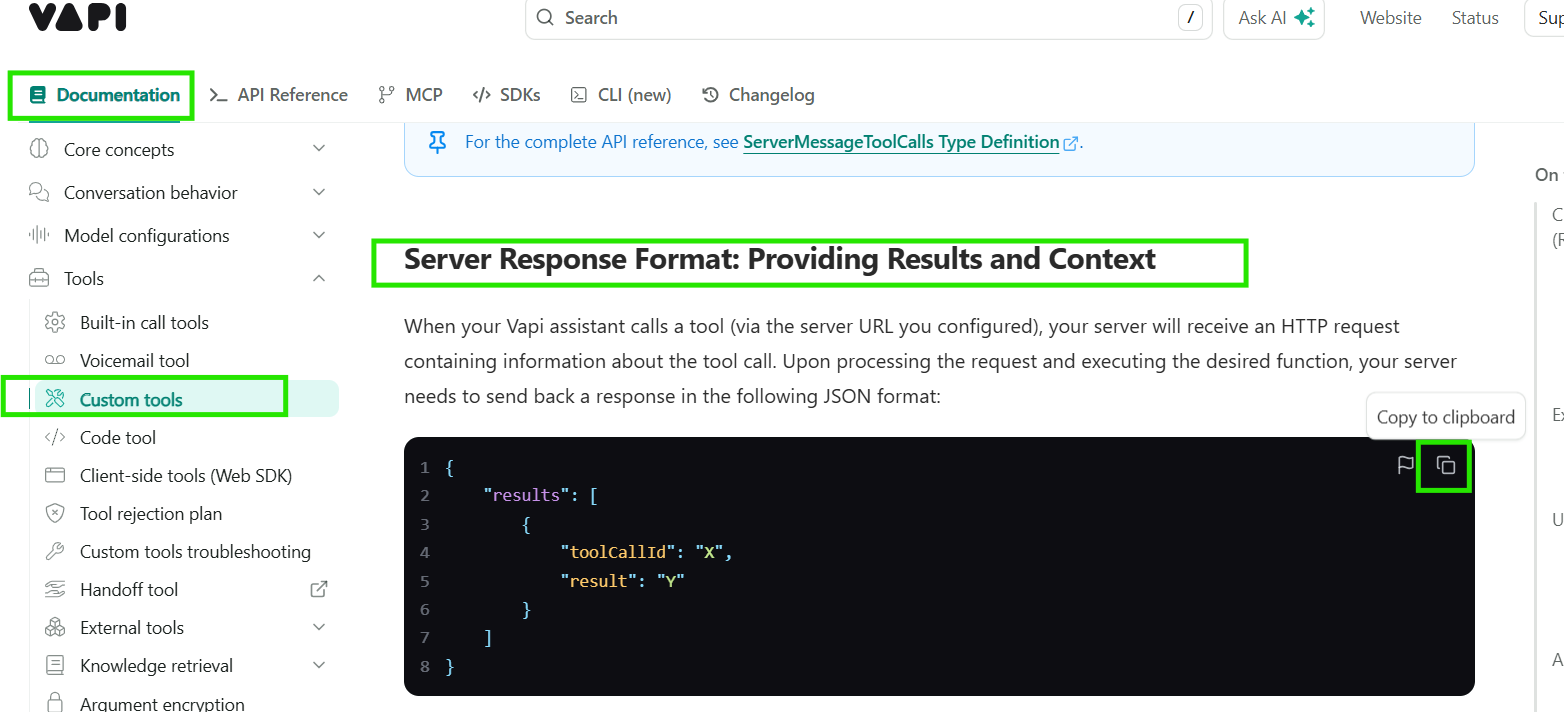
Click on Custom Tools. Scroll to Server Response Format: Providing Results and Context and copy the JSON.
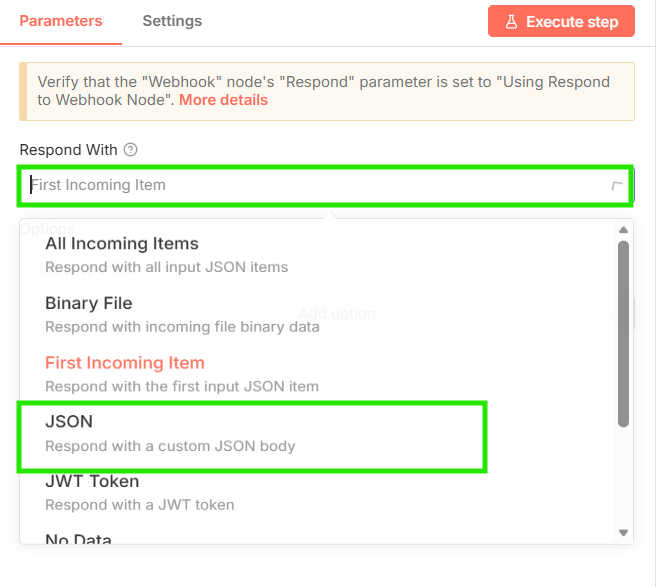
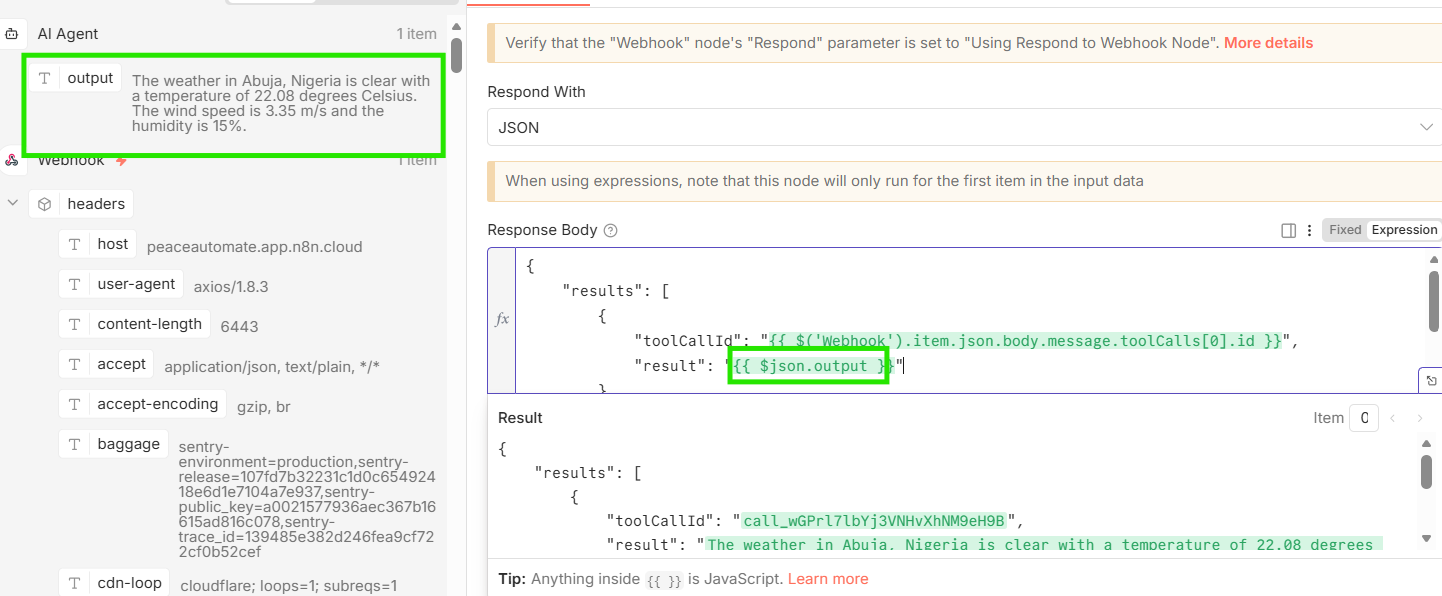
Back to n8n. Double click on Respond to Webhook. Click on First incoming message bar and select JSON in the drop-down.
Paste the JSON you have copied into the Respond body.
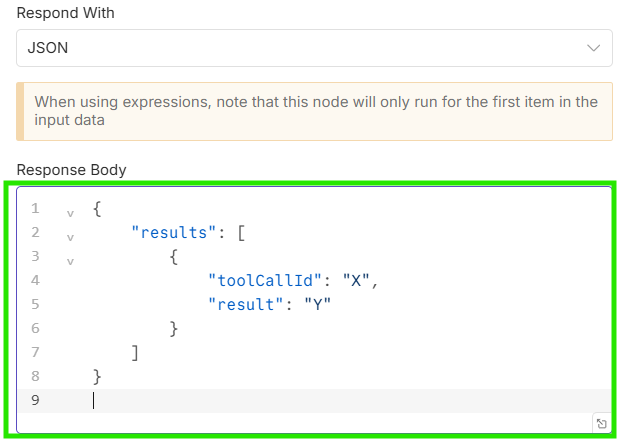
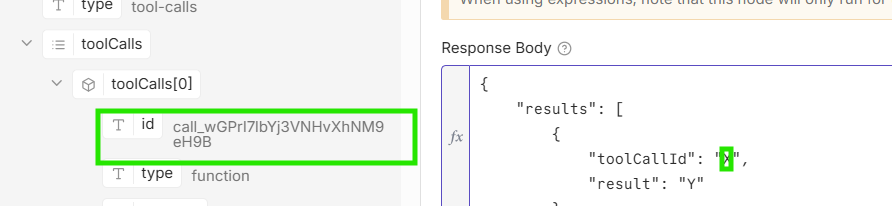
Replace CallID X and Result Y with their equivalent from the left pane.
Let's test again. Execute workflows. Then click on Talk to Assistant
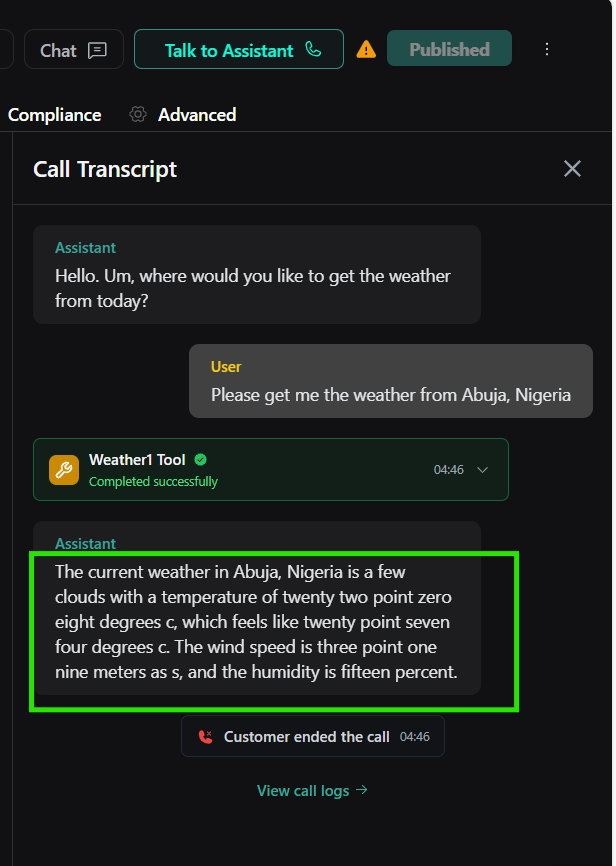
This is what success looks like. Alhamdulillah.
.


